
[Git/GPG] Fix the "Inappropriate ioctl for device" Error when Signing GPG Keys
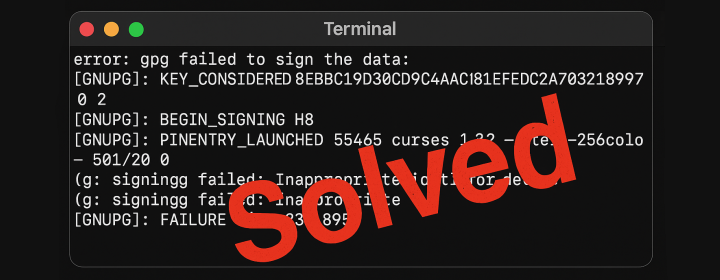
If you’re working on a macOS and trying to set up GPG keys for your GitHub repositories, you might encounter an error that looks like this:
error: gpg failed to sign the data:
[GNUPG:] KEY_CONSIDERED 8EBBC19D30CD94DAC81EFEDC2A703231B997AC90 2
[GNUPG:] BEGIN_SIGNING H8
[GNUPG:] PINENTRY_LAUNCHED 55465 curses 1.3.2 - xterm-256color - - 501/20 0
gpg: signing failed: Inappropriate ioctl for device
[GNUPG:] FAILURE sign 83918950
gpg: signing failed: Inappropriate ioctl for device
This is a surprisingly common issue, and it often points to a problem with the pinentry UI - the program that prompts you for your GPG passphrase.
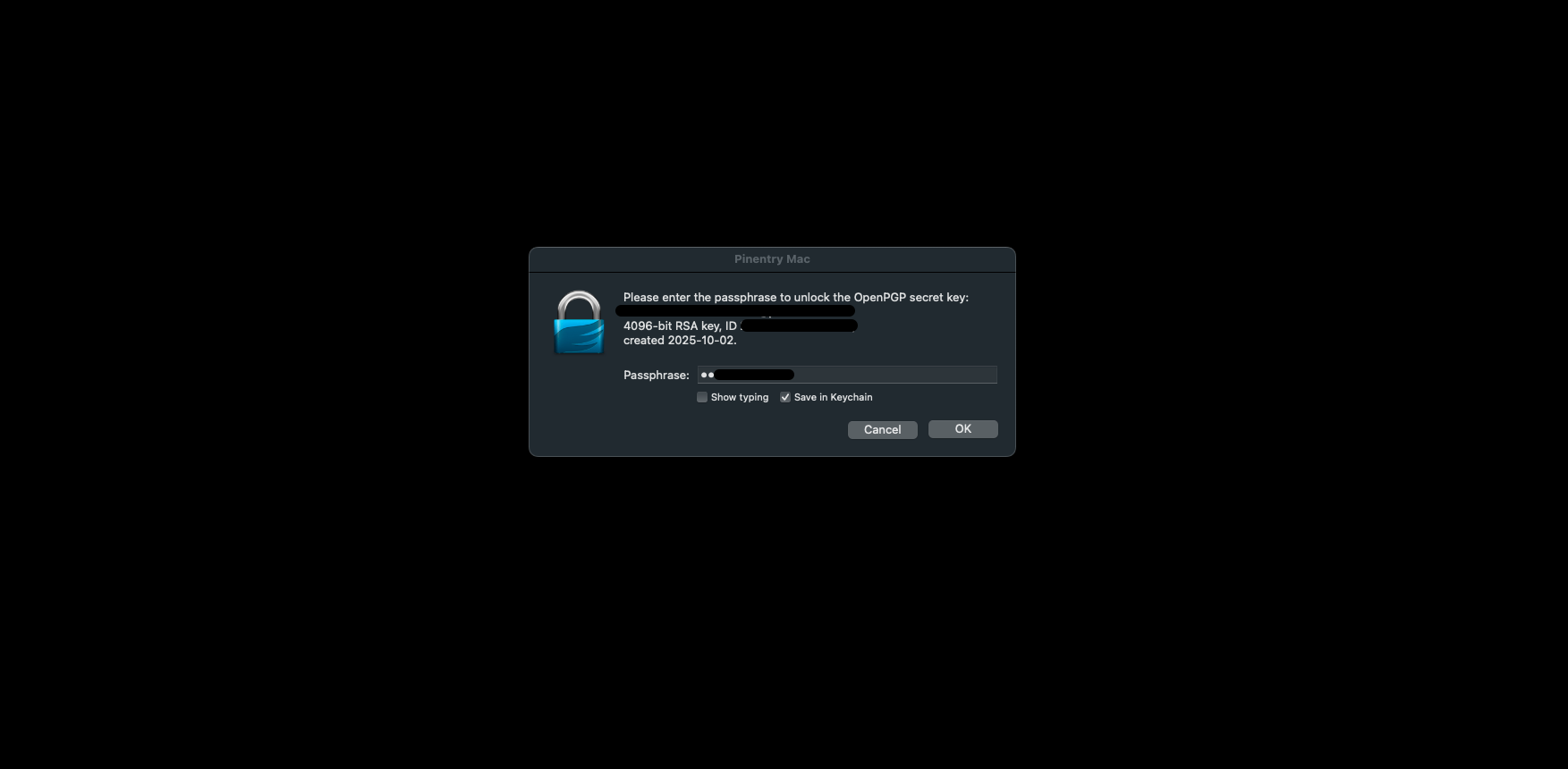
The key line of this error is:
gpg: signing failed: Inappropriate ioctl for device
That means GPG tried to open a TTY (teletypewriter) prompt – a terminal window – to ask you for your passphrase, but it failed to do so. It’s generally caused by a mismatch between your terminal setup and GPG’s expectations.
Root Cause (Simple Explanation)
Git is calling gpg, and gpg needs a pinentry program to securely ask for your GPG passphrase. The current pinentry program isn’t able to attach to your terminal, resulting in the signing failure. This often happens after you install a new terminal emulator in your system, like Fish Shell. Fish Shell, in particular, can interfere with GPG’s ability to correctly interact with the terminal.
Solution
Let’s walk through the steps to resolve this.
Step 1: Install the Correct Pinentry Program
The most common fix involves installing the pinentry-mac program. This is the pinentry UI that GPG needs to interact with.
brew install pinentry-mac
This command uses Homebrew, a package manager for macOS. If you don’t have Homebrew installed, you can download it from https://brew.sh/.
Step 2: Tell GPG to Use It
Now you need to tell GPG to use the pinentry-mac program.
Create or edit your GPG configuration file. This file is typically located at ~/.gnupg/gpg-agent.conf. You can create it using a text editor like nano:
mkdir -p ~/.gnupg
nano ~/.gnupg/gpg-agent.conf
In this file, add the following line:
pinentry-program /opt/homebrew/bin/pinentry-mac
If you’re on an Intel Mac, the path might be:
/usr/local/bin/pinentry-mac
Important: Verify which path is correct by running which pinentry-mac in your terminal. This command will show you the full path to the pinentry-mac executable.
Step 3: Restart the GPG Agent
After modifying the GPG configuration, you need to restart the GPG agent. The GPG agent is a program that manages your GPG keys and provides them to GPG on demand.
gpgconf --kill gpg-agent
gpgconf --launch gpg-agent
These commands stop and then start the GPG agent.
Step 4: Export GPG_TTY (VERY Important)
This step is absolutely crucial, especially when you install a new terminal emulator like Fish Shell. Setting the GPG_TTY environment variable tells GPG which terminal you’re using.
For Fish Shell:
set -Ux GPG_TTY (tty)
This command sets the GPG_TTY variable to the current terminal’s name.
Verify the setting:
echo $GPG_TTY
The output should be something like /dev/ttys0 or similar, representing your terminal.
Step 5: Try Committing Again
Finally, try committing your changes to your Git repository.
git commit -m "test commit"
If this still fails, double-check the steps above, ensuring that the pinentry-program path is correct and that the GPG_TTY environment variable is set correctly.
By following these steps, you should be able to resolve the Inappropriate ioctl for device error and successfully sign your Git commits with GPG on macOS. Remember to pay close attention to the terminal prompts and ensure that GPG is correctly configured to interact with your terminal.
Enjoyed this article? Support my work with a coffee ☕ on Ko-fi.

