
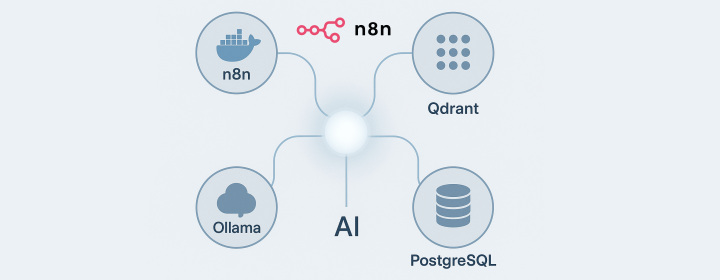
Let’s get started with setting up an AI workflow using n8n in Docker on a Windows machine, featuring local service integration with Ollama. Whether you are familiar with n8n or starting from scratch, this guide walks you through the steps needed.
Understanding the Basics
n8n is a versatile, self-hosted automation tool designed to connect and automate the use of over 400 services, now including AI components. When integrated with various large language models (LLMs) such as OpenAI’s chat models, Google’s Gemini Chat Model, or Ollama, it extends its capabilities significantly.
Prerequisites: Ollama and Other Services
If Ollama is already running on your local machine, you’re off to a great start. However, for a comprehensive AI workflow, integrating additional services like a vector database (Qdrant) and a relational database (PostgreSQL) is crucial. These databases help manage large datasets effectively, enabling advanced features such as semantic search and AI recommendations.
If You’re Starting from Scratch
Before diving deep, check out this Git repository, not affiliated directly, but it includes:
- n8n - A low-code platform packed with integrations and AI components.
- Ollama - A cross-platform LLM for running local models.
- Qdrant - A high-performance vector database.
- PostgreSQL - A robust relational database.
For Mac or Linux Users
The installation instructions in the mentioned repository are straightforward for macOS or Linux users. However, for Windows users wishing to run n8n with Docker but keep Ollama separate, here are some tailored instructions.
Setup on Windows: Step-by-Step
Install Ollama Locally
-
Download and Install Ollama: Visit Ollama’s website and download the installer. Choose models based on your GPU memory (e.g., 1b for 1GB).
-
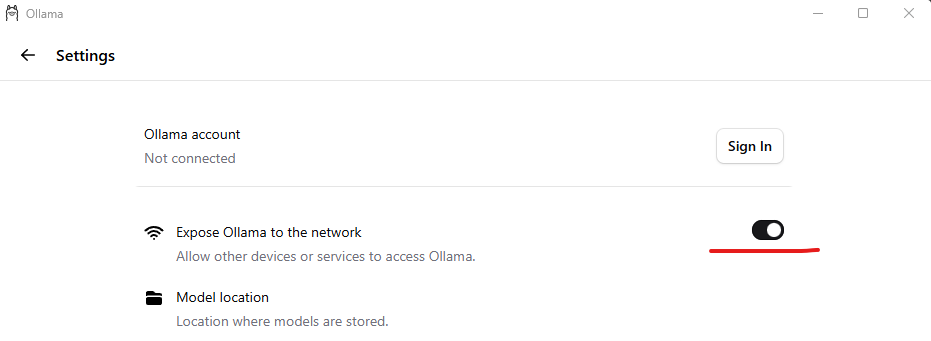
Settings Configuration: Open Ollama settings post-installation and enable “Expose Ollama to the network” to allow API access by n8n.
Modify Docker Compose File
For running n8n, Qdrant, and PostgreSQL in a Docker container, you’ll make some modifications to the docker-compose.yml file in the self-hosted AI starter kit:
  1volumes:
  2  n8n_storage:
  3  postgres_storage:
  4  ollama_storage:
  5  qdrant_storage:
  6
  7networks:
  8  demo:
  9
 10x-n8n: &service-n8n
 11  image: n8nio/n8n:latest
 12  networks: ['demo']
 13  environment:
 14    - DB_TYPE=postgresdb
 15    - DB_POSTGRESDB_HOST=postgres
 16    - DB_POSTGRESDB_USER=${POSTGRES_USER}
 17    - DB_POSTGRESDB_PASSWORD=${POSTGRES_PASSWORD}
 18    - N8N_DIAGNOSTICS_ENABLED=false
 19    - N8N_PERSONALIZATION_ENABLED=false
 20    - N8N_ENCRYPTION_KEY
 21    - N8N_USER_MANAGEMENT_JWT_SECRET
 22    - OLLAMA_HOST=${OLLAMA_HOST:-ollama:11434}
 23  env_file:
 24    - path: stack.env
 25      required: true
 26
 27x-ollama: &service-ollama
 28  image: ollama/ollama:latest
 29  container_name: ollama
 30  networks: ['demo']
 31  restart: unless-stopped
 32  ports:
 33    - 11434:11434
 34  volumes:
 35    - ollama_storage:/root/.ollama
 36
 37x-init-ollama: &init-ollama
 38  image: ollama/ollama:latest
 39  networks: ['demo']
 40  container_name: ollama-pull-llama
 41  volumes:
 42    - ollama_storage:/root/.ollama
 43  entrypoint: /bin/sh
 44  environment:
 45    - OLLAMA_HOST=ollama:11434
 46  command:
 47    - "-c"
 48    - "sleep 3; ollama pull llama3.2"
 49
 50services:
 51  postgres:
 52    image: postgres:16-alpine
 53    hostname: postgres
 54    networks: ['demo']
 55    restart: unless-stopped
 56    environment:
 57      - POSTGRES_USER
 58      - POSTGRES_PASSWORD
 59      - POSTGRES_DB
 60    volumes:
 61      - postgres_storage:/var/lib/postgresql/data
 62    healthcheck:
 63      test: ['CMD-SHELL', 'pg_isready -h localhost -U ${POSTGRES_USER} -d ${POSTGRES_DB}']
 64      interval: 5s
 65      timeout: 5s
 66      retries: 10
 67
 68  n8n-import:
 69    <<: *service-n8n
 70    hostname: n8n-import
 71    container_name: n8n-import
 72    entrypoint: /bin/sh
 73    command:
 74      - "-c"
 75      - "n8n import:credentials --separate --input=/demo-data/credentials && n8n import:workflow --separate --input=/demo-data/workflows"
 76    volumes:
 77      - ./n8n/demo-data:/demo-data
 78    depends_on:
 79      postgres:
 80        condition: service_healthy
 81
 82  n8n:
 83    <<: *service-n8n
 84    hostname: n8n
 85    container_name: n8n
 86    restart: unless-stopped
 87    ports:
 88      - 5679:5678
 89    volumes:
 90      - n8n_storage:/home/node/.n8n
 91      - ./n8n/demo-data:/demo-data
 92      - ./shared:/data/sha
 93    depends_on:
 94      postgres:
 95        condition: service_healthy
 96      n8n-import:
 97        condition: service_completed_successfully
 98
 99  qdrant:
100    image: qdrant/qdrant
101    hostname: qdrant
102    container_name: qdrant
103    networks: ['demo']
104    restart: unless-stopped
105    ports:
106      - 6333:6333
107    volumes:
108      - qdrant_storage:/qdrant/storage
109
110  ollama-cpu:
111    profiles: ["cpu"]
112    <<: *service-ollama
113
114  ollama-pull-llama-cpu:
115    profiles: ["cpu"]
116    <<: *init-ollama
117    depends_on:
118      - ollama-cpu
119  python:
120    image: python:3.11-slim
121    container_name: n8n-python
122    networks: ['demo']
123    restart: unless-stopped
124    working_dir: /scripts
125    volumes:
126      - ./n8n-scripts:/scripts
127    command: bash -c "pip install pillow flask && python /scripts/design_api.py"
128    ports:
129      - "5001:5000"
The Ollama service and corresponding GPU configurations have been removed from the Docker Compose setup
Running the Docker Compose
Execute the docker-compose file by running:
docker-compose up -d
Ensure the environment variable OLLAMA_HOST in line 22 is set to your local IP address; DO NOT use 127.0.0.1; Otherwise, you will need to manually update the n8n node each time the service restarts.
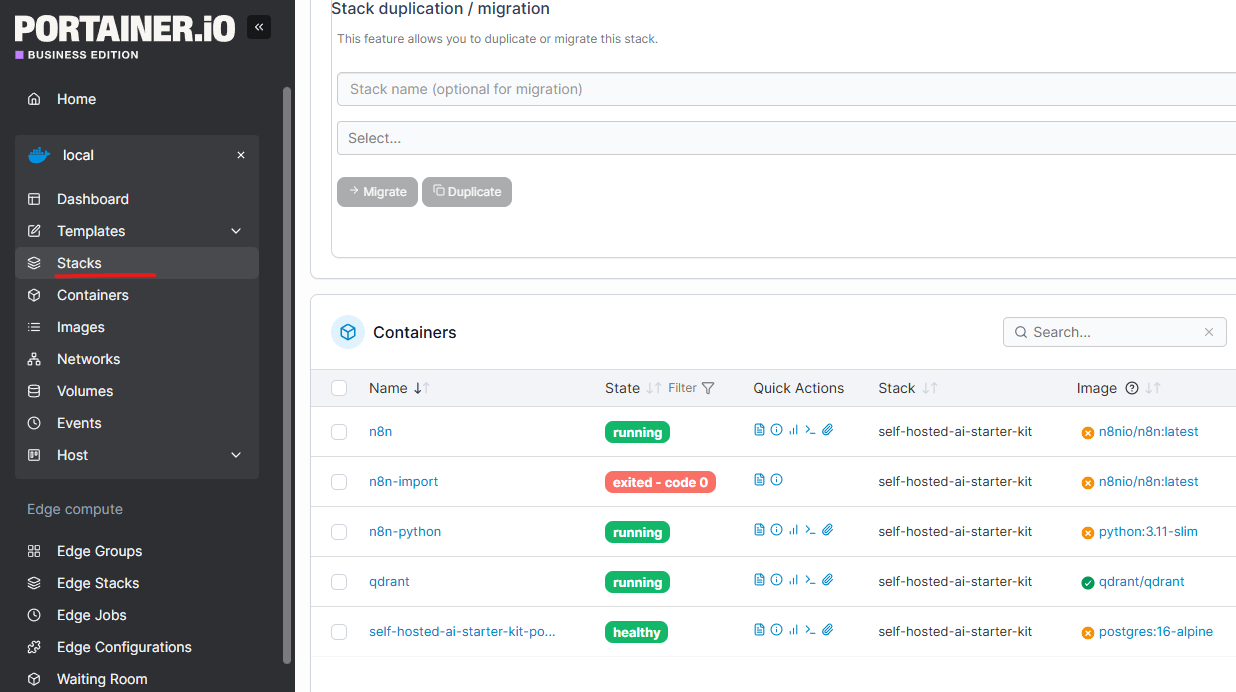
Simplify Management with Portainer
For easier service management, consider using Portainer:
-
Installation: Get the Community Edition for free or Business Edition for 3 free nodes from Portainer.io.
-
Create a Stack: Use the modified YAML configuration as a stack with your environment settings in Portainer for a hassle-free setup.
Building Your AI Workflow in n8n
Once everything is set:
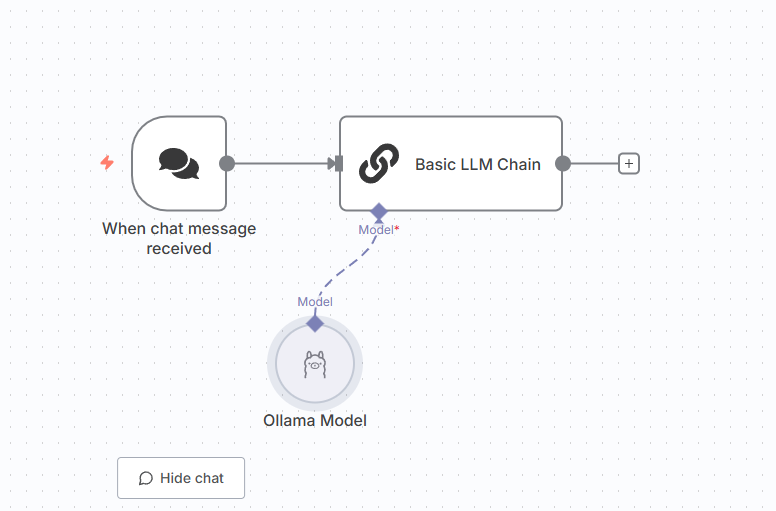
- Open the n8n editor.
- Add a Basic LLM Chain node.
- Connect it to the Ollama model, enhanced by Qdrant’s performance, to create a robust, scalable AI workflow capable of semantic search, literature generation, or recommendations.
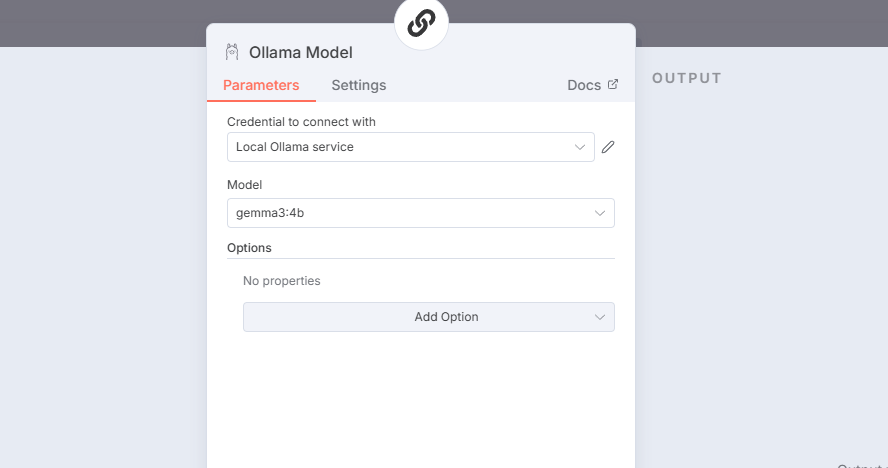
With these steps, you can efficiently harness the power of local LLM services and databases for a truly mature AI workflow right from the comfort of your Windows setup.
Enjoyed this article? Support my work with a coffee ☕ on Ko-fi.

