
Understanding the Error and Why It Occurs
The message
Please use the command-line updater because updating via browser is disabled in your config.php
means NextCloud’s configuration file (config.php) is set to restrict browser-based updates.
This is a security measure designed to prevent unauthorized or potentially malicious updates.
Docker setups often implement this for added security.
Step-by-Step Instructions
1. Access Your Docker Container
First, you need to access your NextCloud Docker container’s shell.
Let’s assume your NextCloud container is named nextcloud. Replace nextcloud with the actual name of your container.
docker exec -it nextcloud bash
This command will open a bash shell inside your container.
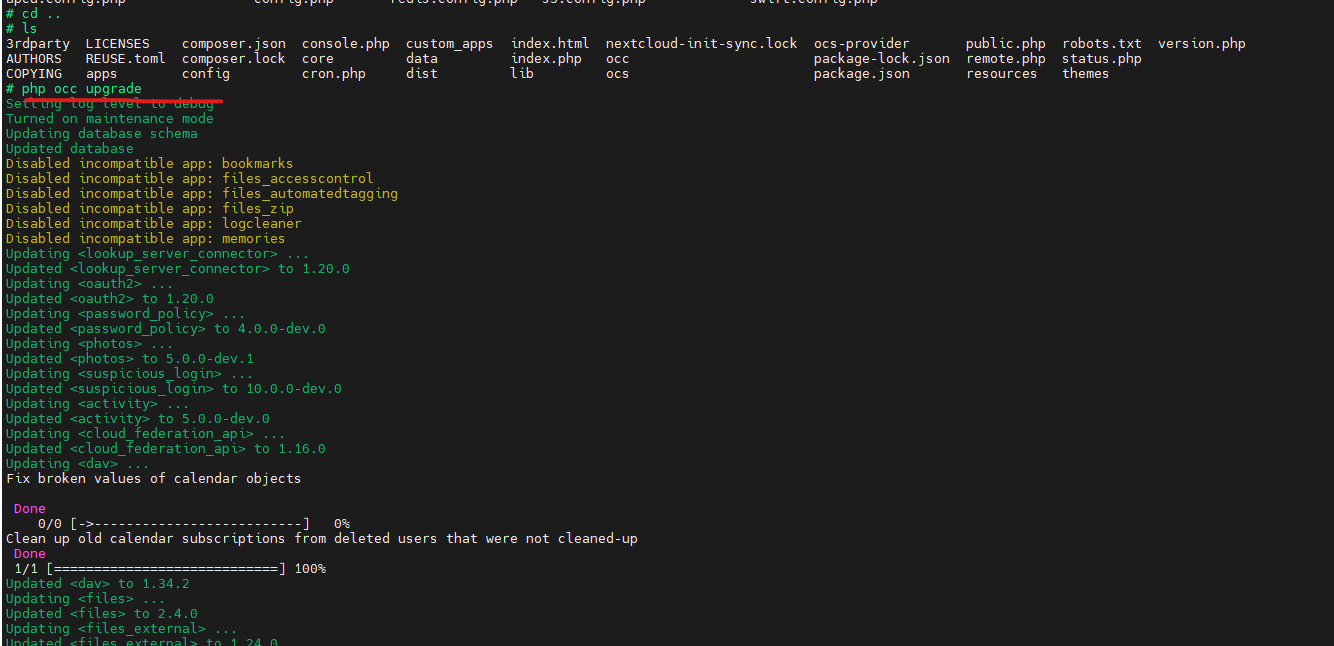
2. Perform the Update
Now that you’re inside the container, run the Nextcloud upgrade command:
sudo php occ upgrade
This command initiates the update process, downloading and installing the latest Nextcloud version.
You may be prompted for your Nextcloud admin password during this step.
3. Disable Maintenance Mode (If Enabled)
If maintenance mode is enabled (which is common during updates), you need to disable it afterward:
sudo php occ maintenance:mode --off
This command turns off maintenance mode, allowing normal Nextcloud operations.
4. Check the Logs for Errors
During the update process, Nextcloud generates log files.
Review the logs to identify and troubleshoot any potential issues:
sudo docker logs nextcloud
Examine the output for error messages or warnings.
If errors are present, carefully review the log details to understand the cause.
5. Verify the Update
After the upgrade command completes successfully, verify that NextCloud has been updated:
- Open your NextCloud web interface in a browser.
- Check the Nextcloud version number in the settings (Settings → General). It should reflect the new version.
Additional Notes and Considerations
-
Database and Storage:
Ensure your NextCloud database and storage are properly configured and accessible from within the container.
Incorrect configurations can lead to update failures. -
App Compatibility:
If you experience issues after the update, some apps might not be compatible with the new Nextcloud version.
Disable problematic apps using the following command:sudo php occ app:disable <app_name>Replace
<app_name>with the name of the app. -
Maintenance Mode:
It’s common practice to enable maintenance mode during updates to prevent users from accidentally modifying data during the process.
By following these steps, you can effectively update your NextCloud instance running in Docker, resolving the “Please use the command-line updater” error and keeping your installation secure and up-to-date.
Enjoyed this article? Support my work with a coffee ☕ on Ko-fi.

