
When the default IMAP node in n8n stopped working, I found a community-contributed solution that you can rely on. Whether you’re setting up workflows in n8n or managing existing ones, this guide will show you how to seamlessly integrate with IMAP despite the hiccups in recent n8n versions.
Understanding the Problem
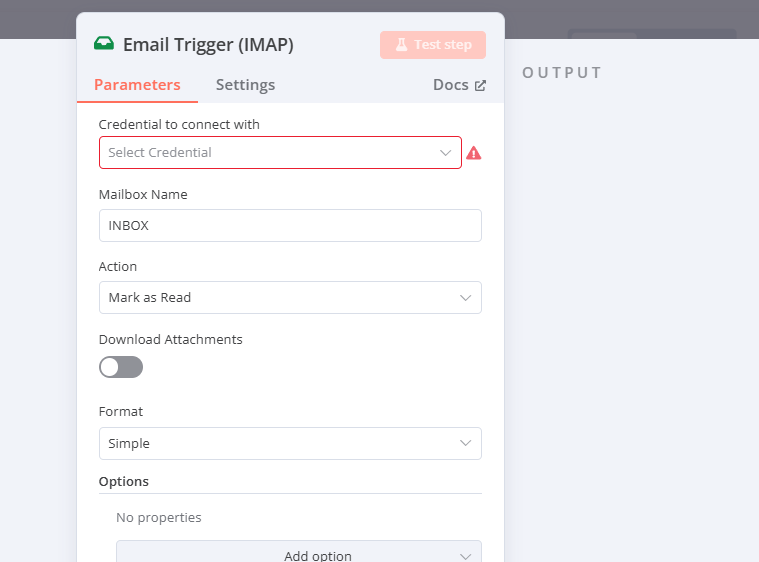
The IMAP node in n8n has become troublesome in versions beyond 1.80.3. When a friend encountered this issue on version 1.104.2, we confirmed the problem persists even with the latest version, 1.112.6.
Rolling back to an older version like 1.80.3 isn’t always viable, especially if you’re working with complicated workflows that utilize nodes introduced in later updates. Therefore, an alternative is necessary.
Harnessing Community Nodes
n8n offers a fantastic way to enhance your workflows with community-contributed nodes, even though they don’t appear in the regular node search. Here’s how you can capitalize on this:
-
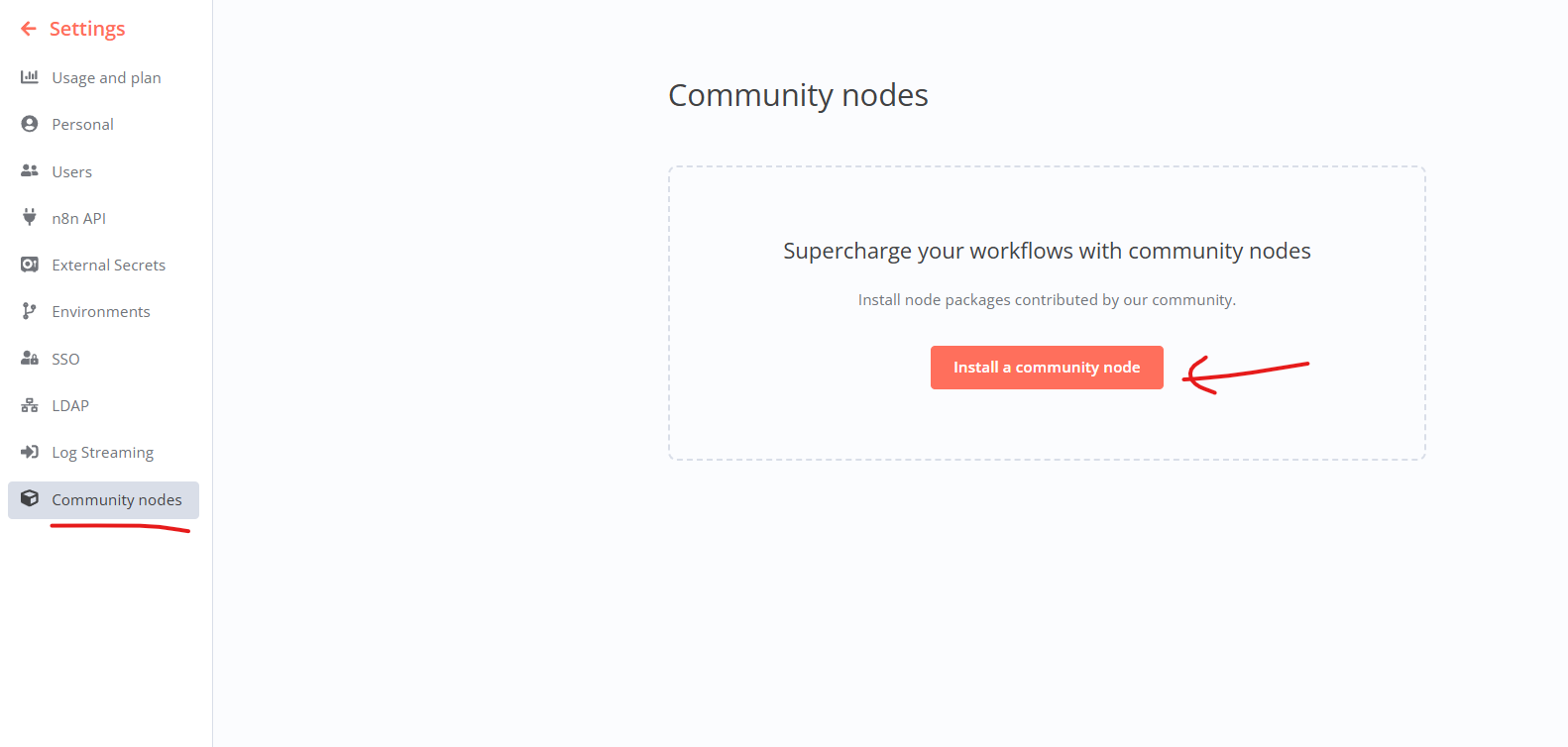
Accessing Community Nodes in n8n: Navigate to the settings in n8n by clicking the gear icon at the bottom left corner. Then, select “Settings” and proceed to the “Community nodes” section.
-
Installing a Community Node: Click on “Install a community node” and use the Browse feature to search “n8n-nodes-imap” on the npm package manager page. Pay attention to download numbers, as they suggest reliability and security.
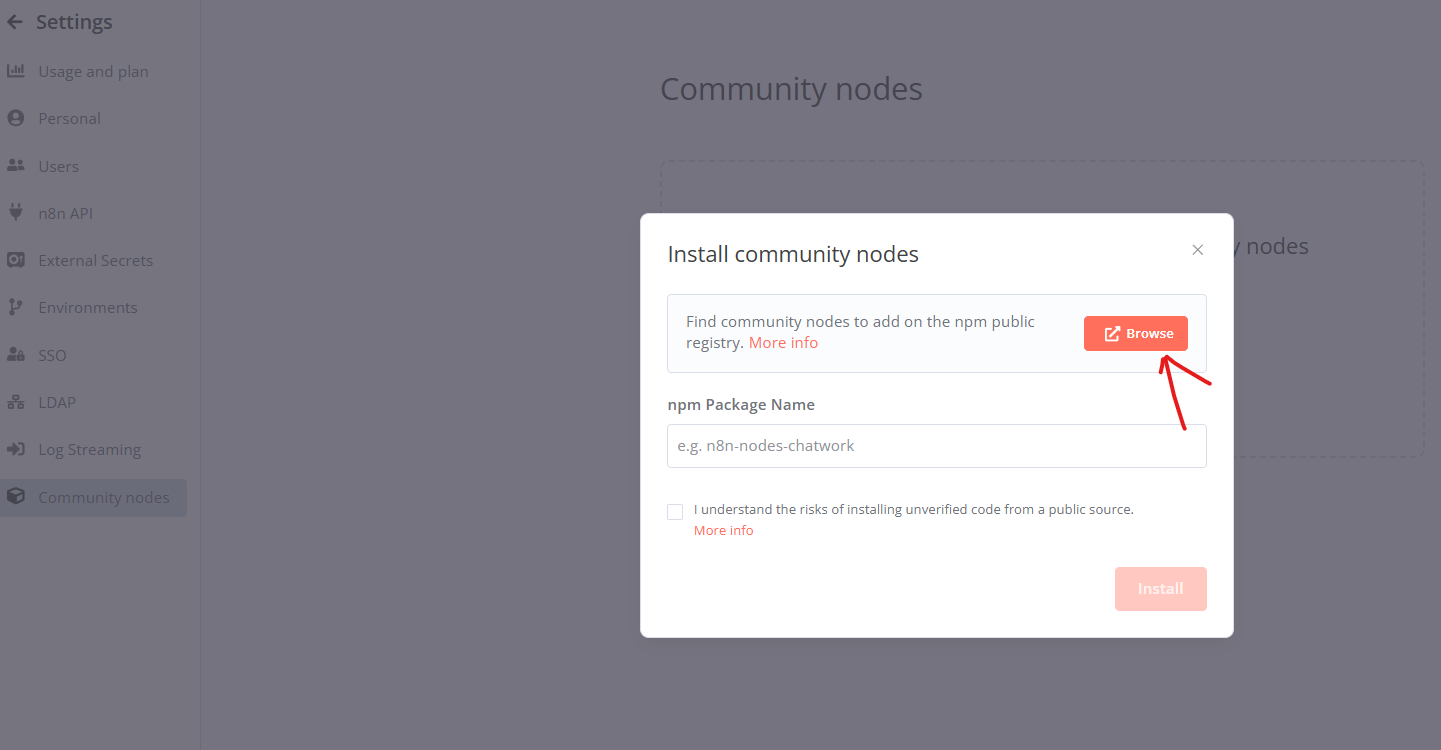
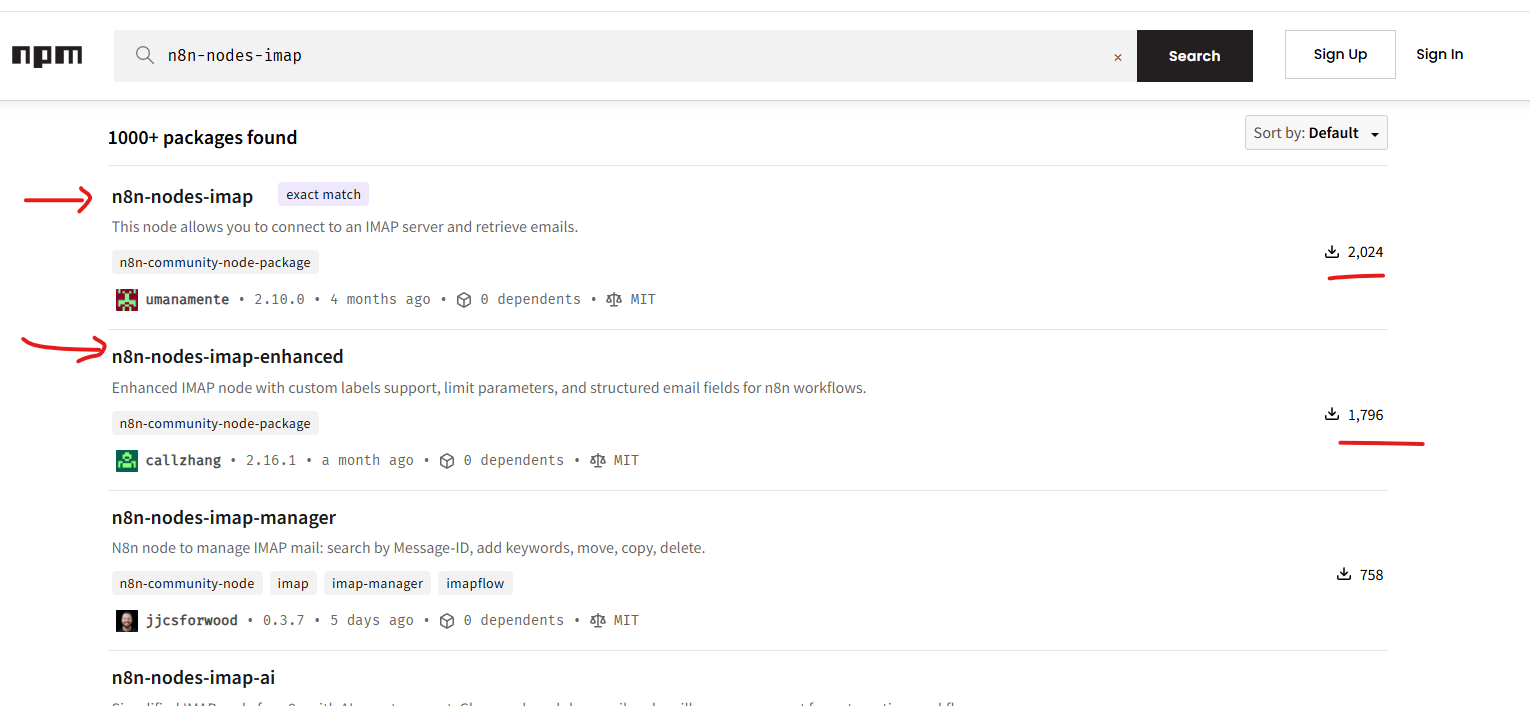
- Example Installation: I opted for “n8n-nodes-imap-enhanced,” but both top results are reputable. Copy the node name, return to n8n, paste it, and click “Install.”
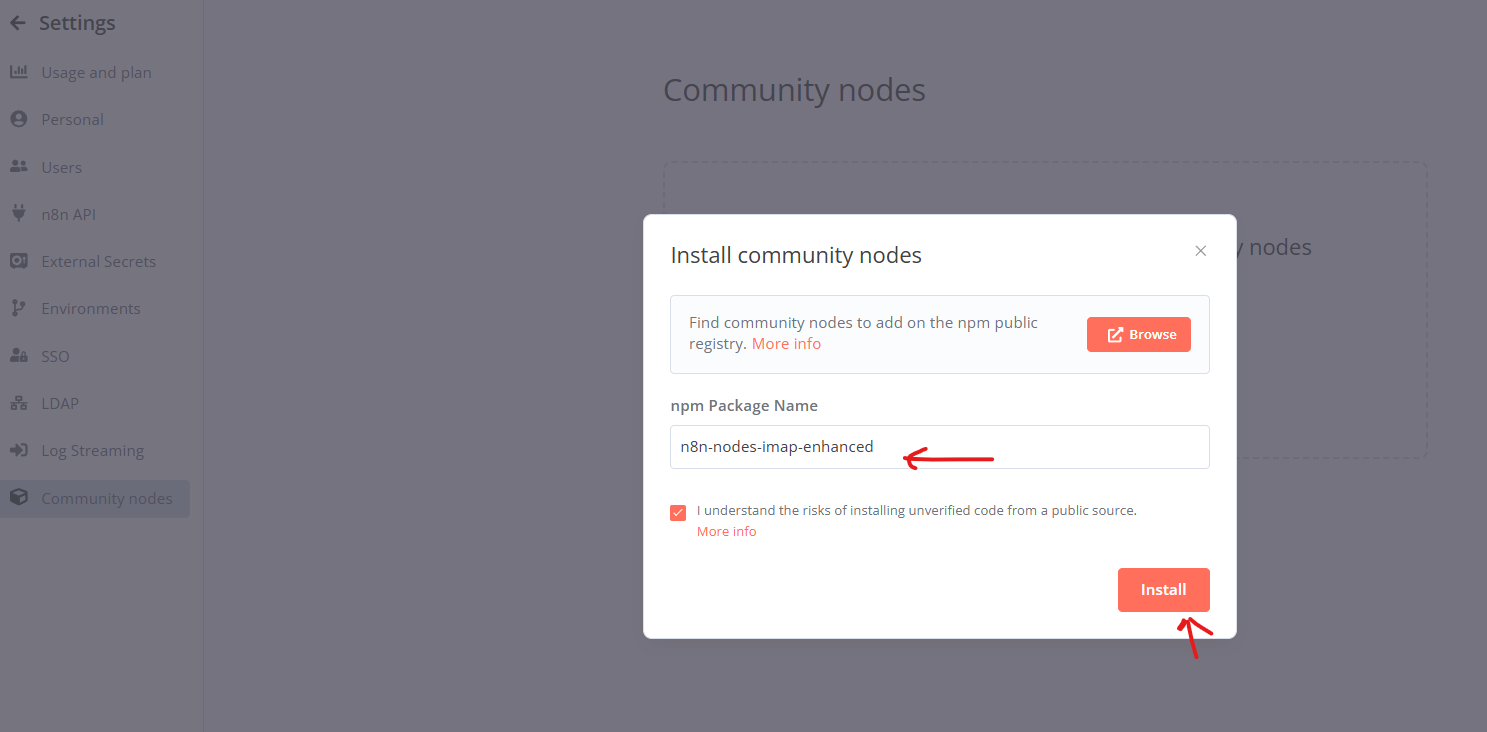
Configuring the IMAP Enhanced Node
Once the installation is complete, type “imap” in the n8n node search to find “IMAP Enhanced.” This node lets you maintain your workflow without reverting your n8n version.
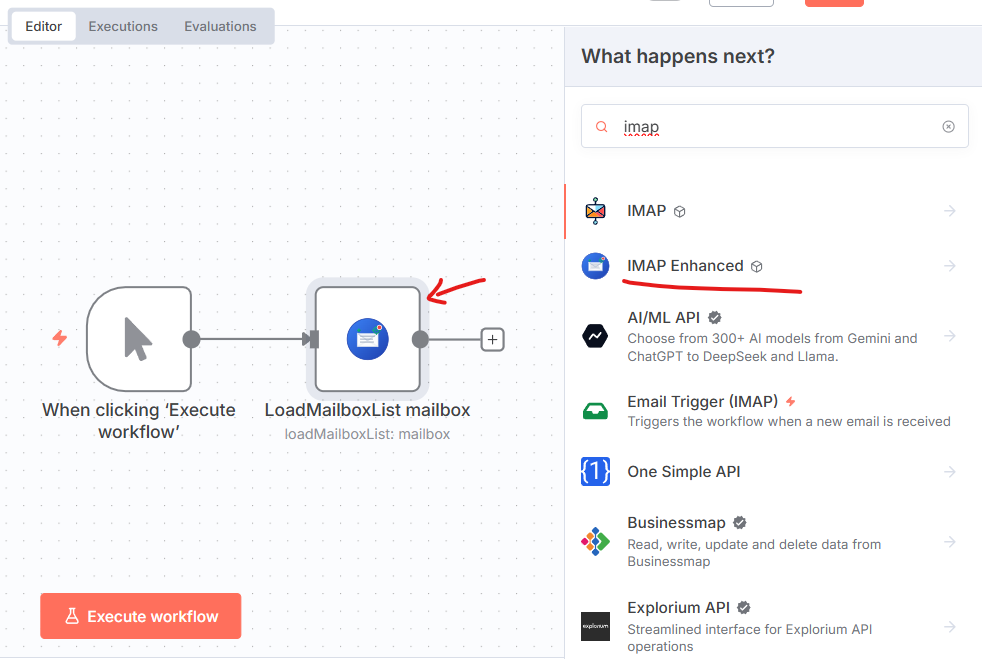
Key Configuration Settings
-
Resource: By default, it’s set to “Mailbox.” Switch to “Email” if you need more detailed control.
-
Mailbox and Date Range: Access emails specifically from “INBOX” and set date filters to control which days’ emails to read.
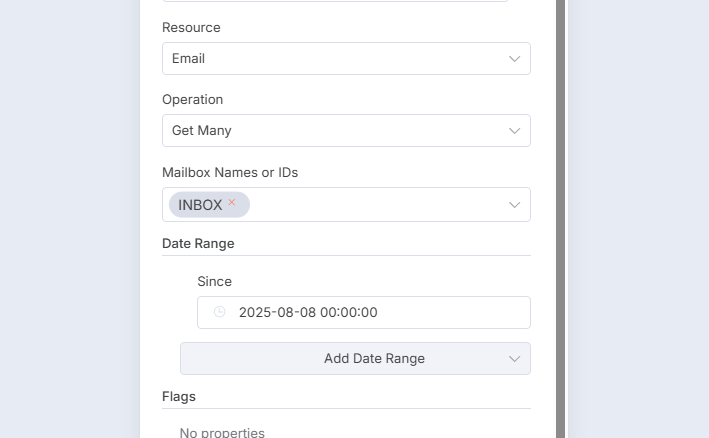
- ❗ Flag Settings: For processing unread emails only, add the “Is Seen (Read)” flag and keep it disabled.
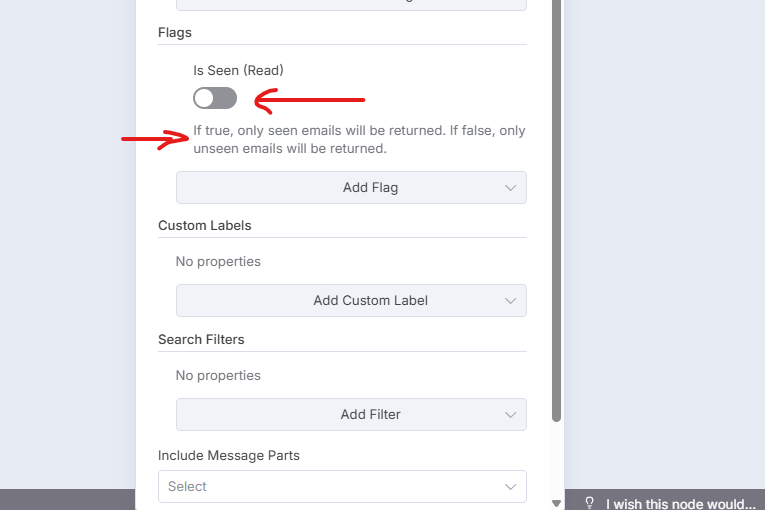
- Additional Options: Consider using custom labels, filters, or limits to tailor the node to your requirements.
With these steps, the “IMAP Enhanced” node effectively mimics and improves upon the original IMAP functionality.
Final Thoughts
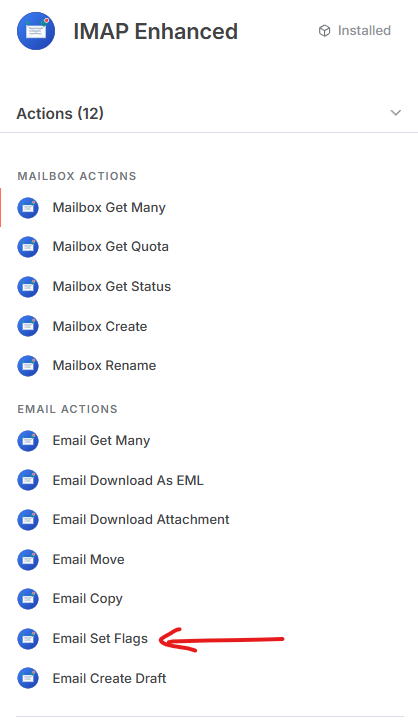
Implementing community-contributed nodes in n8n is a robust solution for when official nodes falter. For marking emails as read, simply use “Email Set Flags” within the same node. This alternative setup allows you to continue using IMAP seamlessly, benefiting from ongoing improvements and security updates the community contributes.
By following this guide, you’ll gain the flexibility to adapt and overcome issues that arise with default nodes in n8n, ensuring your email workflows remain functional and efficient.
Enjoyed this article? Support my work with a coffee ☕ on Ko-fi.

