
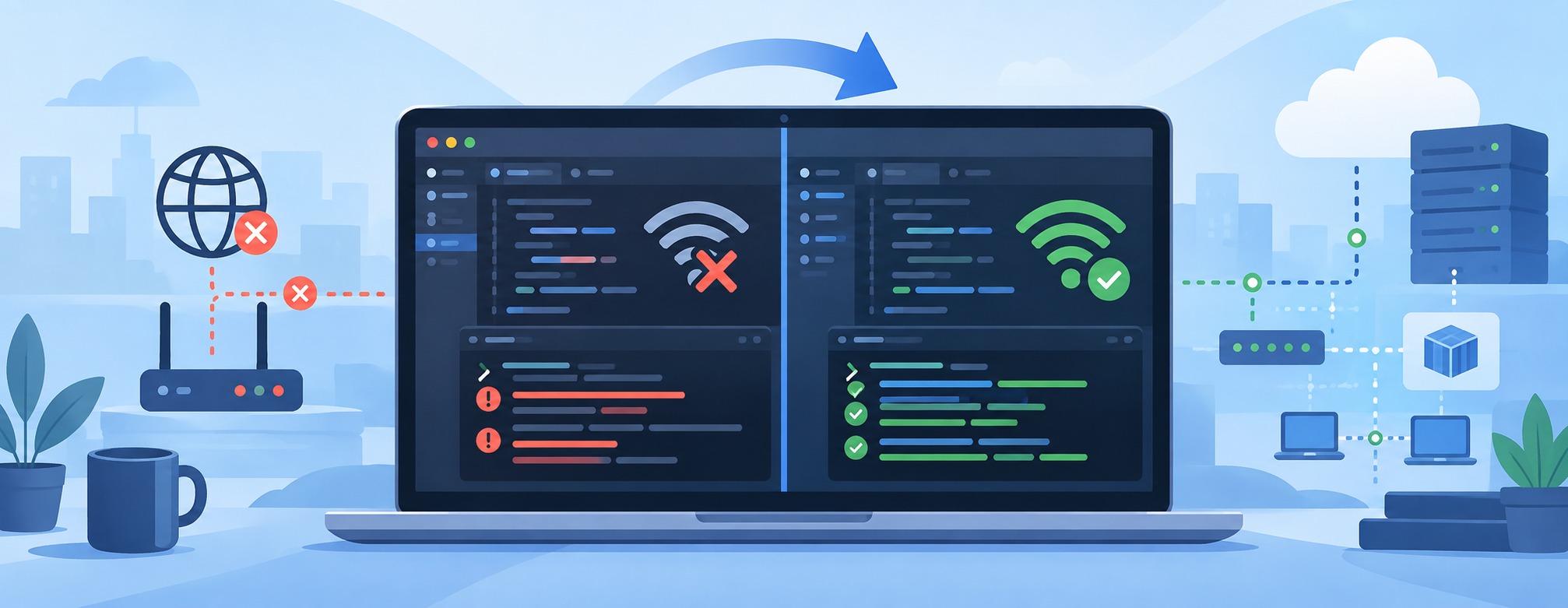
If you’ve been using Windows Subsystem for Linux (WSL2) and suddenly find that your internet or LAN connections are lost, or you encounter git pull errors in Visual Studio Code, you’re not alone. Many users experience this issue where everything seems fine on the Windows side, yet WSL2 loses connectivity without warning. But don’t worry—there’s a straightforward fix that can get you back on track swiftly.
Symptoms
Before jumping into solutions, it’s essential to accurately pinpoint the symptoms. If you’re facing connectivity issues with WSL2, you might notice any of the following:
WSL2 Can’t Reach the Internet
Attempting to execute commands like ping google.com from your WSL2 environment fails. This typically indicates that your WSL2 interface is unable to reach external networks, suggesting a break in the connection between your virtual environment and your network adapter.
WSL2 Can’t Reach LAN Devices
If you’re unable to communicate with other devices on your Local Area Network (LAN) from WSL2, this may point to a broader issue with WSL2’s network configuration, particularly with how it’s set up to handle local network traffic.
VS Code Git Issues
The earliest and perhaps most frustrating sign is when Visual Studio Code, configured to work with WSL2, fails to execute git pull or git push commands. These operations may hang indefinitely or fail with network errors, disrupting your development workflow. This happens because the git operations rely on WSL2’s network access, and if that’s compromised, so is your ability to interact with remote repositories.
Windows Remains Unaffected
One of the puzzling aspects is that Windows itself remains unaffected. It maintains full internet access and the ability to connect to LAN devices without any hitches. This disparity really underscores the fact that the issue lies within WSL2’s networking setup.
Why It Breaks
Understanding why this issue occurs can help in comprehending the fix. By default, WSL2 uses a Network Address Translation (NAT) mode via a virtual network adapter. This adapter, while efficient for simple tasks, can be quite fragile. Several factors might trigger its failure:
Windows Updates
Regular updates to Windows can inadvertently affect the configurations or stability of WSL2’s network adapter. Sometimes, a simple update can disrupt the default networking setup, setting off these connectivity issues.
Sleep/Wake Cycles
Every time your computer goes to sleep and wakes up, it’s a bit like ripping the wires out of a network interface and then plugging them back in—it doesn’t always go back exactly as it was. These cycles can leave your virtual adapter in a non-functional state.
VPN Clients
VPNs alter routing tables and network configurations drastically to secure tunnels. These modifications can unintentionally touch WSL2’s environment, causing its network interfaces to fail.
Glitches in the Host Network Service (HNS)
The Host Network Service is responsible for managing network settings, and occasionally it can become unstable or misconfigured, leading to WSL2’s networking components not behaving as expected.
Though your adapter may report that it’s “connected,” it might still fail to route traffic, rendering your WSL2 environment network-less while your Windows setup carries on normally.
The Fix
To solve this, you will want to switch WSL2 from its default NAT networking mode to a mirrored networking mode. This more stable setup allows WSL2 to use the Windows host’s network directly, bypassing the unstable virtual adapter.
Step-by-Step Instructions
-
Open PowerShell as Administrator: It’s important to have administrative privileges to make the necessary changes. You can do this by right-clicking on the PowerShell icon and selecting “Run as Administrator.”
-
Edit the Configuration File:
Initiate Notepad with the command below to create or edit the WSL configuration file:
notepad "$env:USERPROFILE\.wslconfig"
- Add Configuration Settings:
Insert the following settings into the file:
[wsl2]
networkingMode=mirrored
dnsTunneling=true
firewall=false
These settings shift the networking to mirrored mode and fine-tune the DNS and firewall options to promote a more reliable connection.
- Shut Down WSL:
For the changes to take effect, you’ll need to restart WSL:
wsl --shutdown
- Restart and Test:
Once you restart WSL, verify the network by pinging Google, local network and testing git commands:
ping google.com
ping 192.168.1.10 # other device IP in LAN
git pull
With these changes, both internet and LAN connectivity and git operations should function as expected.
Why This Fixes VS Code Git Pull
VS Code’s integration with WSL allows its terminal and git operations to execute within WSL. When the WSL network fails, git can’t connect to remote repositories. By adjusting to mirrored mode, you’re providing WSL a direct, stable network path that assures these operations resume smoothly.
Quick Reference
Here’s a condensed view of the problem and solution:
| Symptom | Cause | Fix |
|---|---|---|
| WSL can’t reach internet or LAN | Broken NAT adapter | networkingMode=mirrored in .wslconfig |
VS Code can’t git pull in WSL |
WSL has no network | Same fix |
| Issues reappear after reboots | Fragile default networking | Same fix |
Summary
Experiencing network connectivity issues within WSL2 can be a frustrating ordeal, especially when you need to maintain a smooth development experience. Rather than jumping through hoops trying to restart services or reinstall WSL, a simple configuration change can often solve the problem. By editing the .wslconfig file to enable mirrored networking and then restarting WSL, you can sidestep the fragile virtual adapter, ensuring a stable, functional working environment. Implement these changes, and you should see an immediate improvement with your network and code operations in no time.
Enjoyed this article? Support my work with a coffee ☕ on Ko-fi.