
Introduction
Working with user-uploaded files in automation tools like n8n can sometimes present challenges, particularly when dealing with binary files such as CSVs. In this blog post, we will walk through an approach to handle CSV file uploads using the latest version of n8n, version 1.113.3. We will explore how to use the Code node to transform these binary files into text, making it easier to process their contents within an n8n workflow.
The Challenge
Imagine a scenario where users upload CSV files, and you need to process the data contained in each row. However, these files are uploaded as binary files in n8n, making them unreadable as text by default. Although previous solutions might suggest using a “Read Binary File” node, this option is not available in the current version of n8n.
Solution Overview
To read and process CSV files in n8n, we will use two primary nodes:
- Form Trigger Node
- Code Node
Here’s a step-by-step guide on setting up this workflow.
1. n8n Form Trigger Node
The first step involves setting up the form trigger to handle file uploads:
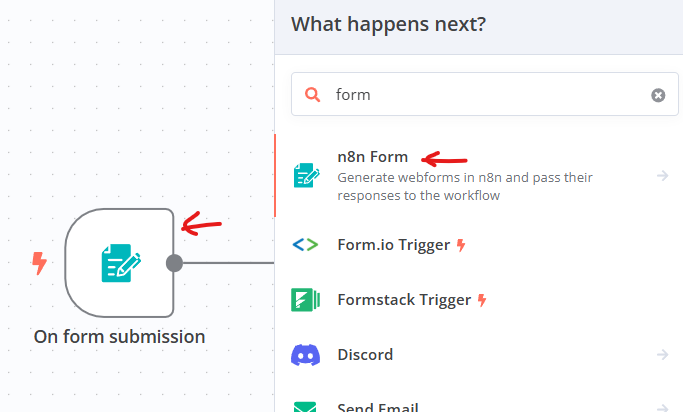
- Search for “n8n Form” in the node search box, and select the n8n Form Trigger node.
- Set the Trigger mode to “On new n8n Form event.”
- Add a new field, select its type as “File,” and name it “file.”
- Save the node configuration to capture the uploaded file.
2. n8n Code Node
Next, use the Code node to process the uploaded file. Follow these instructions:
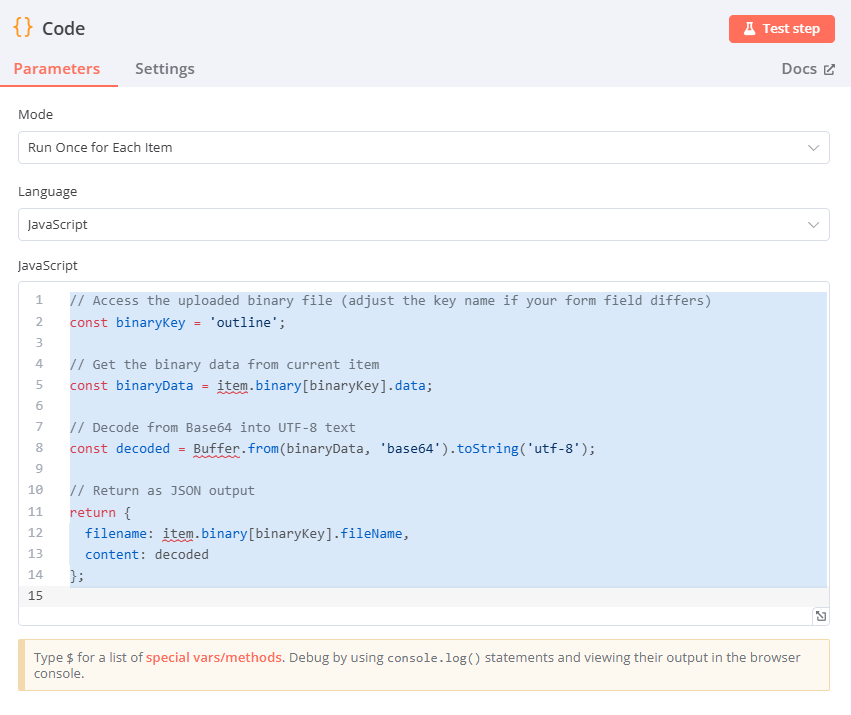
- Add a new node, search for “Code,” and choose the Code node.
- Set the mode to “Run Once for Each Item” and select “JavaScript” as the language.
- Paste the following code into the code editor:
// Access the uploaded binary file (adjust the key name if your form field differs)
const binaryKey = 'file';

// Get the binary data from the current item
const binaryData = item.binary[binaryKey].data;

// Decode from Base64 into UTF-8 text
const decoded = Buffer.from(binaryData, 'base64').toString('utf-8');

// Return as JSON output
return {
  filename: item.binary[binaryKey].fileName,
  content: decoded
};
- Save the node to enable the Code node to read the binary file, decode its content from Base64, and transform it into readable UTF-8 text.
Conclusion
By following this setup, the “Code” node in n8n allows us to efficiently process binary CSV files uploaded by users. This approach ensures that we can easily convert them into plain text and carry out subsequent data processing tasks within the workflow.
We hope this guide empowers you to handle file uploads in n8n adeptly and enhances your data processing capabilities. For more illustrations, check out our configuration example image. If you have further queries or experiences to share, feel free to leave a comment below!
Enjoyed this article? Support my work with a coffee ☕ on Ko-fi.

